
Habit Tracker - HabitTalk Support
Browse the guide below to learn how to use Habit Tracker - HabitTalk. If you can't find an answer, get in touch and we'll help you out.
Step 1
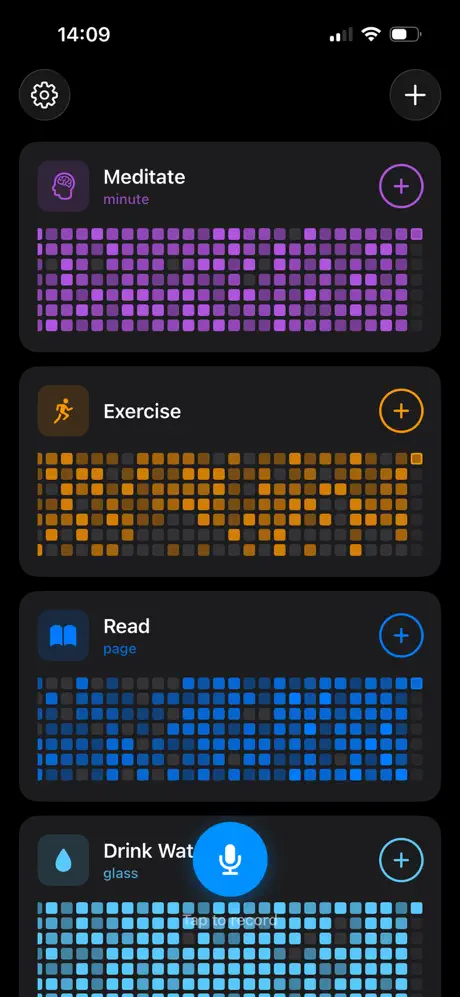
Habit Tracker Dashboard
This screen allows you to view and track your daily habits. It displays a visual representation of your consistency for each habit.
- 1Tap the plus icon on each habit to manually log its completion.
- 2Tap the microphone icon to log your habits using voice input.
- 3View your progress for each habit through the grid of squares. Each square represents a day.
Step 2
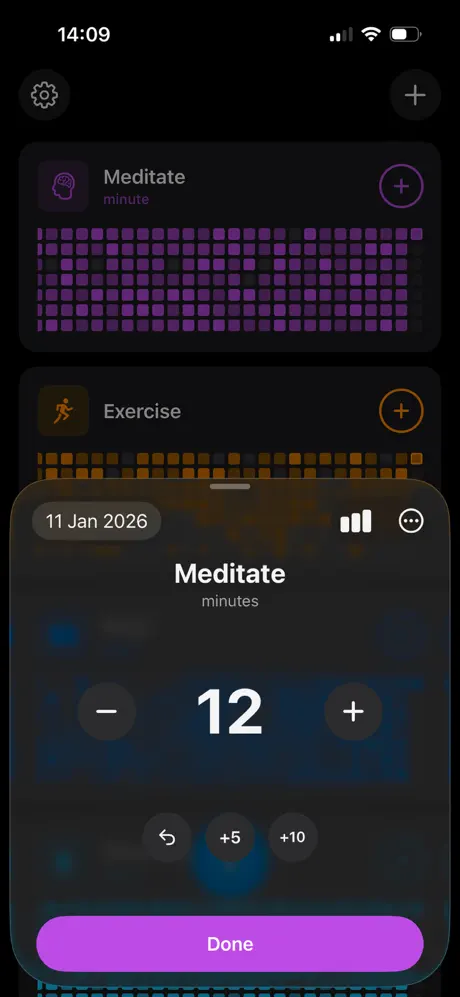
Habit Edit Screen
This screen appears when you want to log a habit entry. Use it to set the duration or quantity for a habit for a specific day.
- 1Tap the '+' or '-' buttons to adjust the habit duration or quantity.
- 2Tap the '+5' or '+10' buttons to quickly increment the habit duration or quantity by 5 or 10, respectively.
- 3Tap the back arrow button to undo the last change to the habit quantity or duration.
- 4Tap 'Done' to save the habit entry and return to the main screen.
Step 3
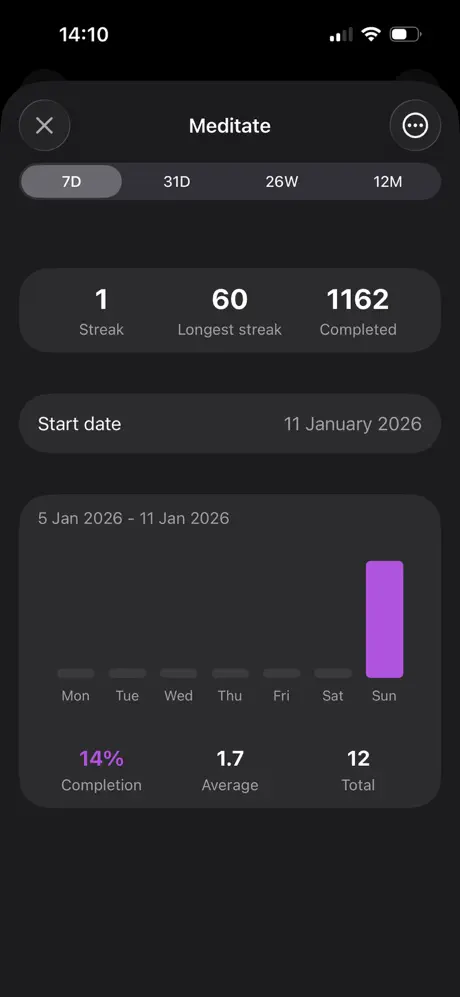
Habit Statistics Screen
This screen shows your stats and progress for your meditation habits. Access this screen to see a summary of your progress over time.
- 1Tap the time period buttons at the top to adjust the time frame for the statistics shown.
- 2View the number of days in a row you've completed this habit with the Streak counter.
- 3The Longest Streak counter displays the longest number of consecutive days you've completed this habit.
- 4See the total number of times you've completed this habit with the Completed counter.
- 5The weekly bar graph shows which days you completed this habit and which days you missed.
Step 4
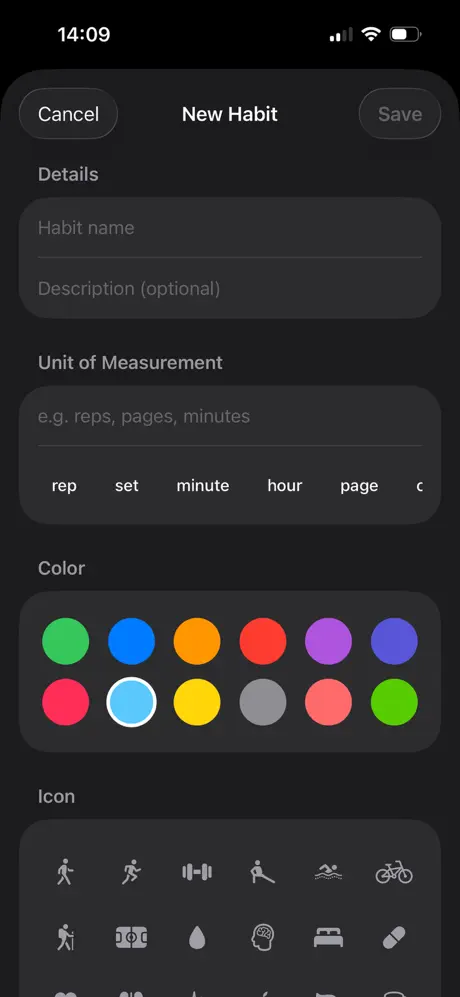
Create New Habit Screen
This screen allows you to define a new habit you want to track. You'll use the available options to name, describe, and customize it.
- 1Use the 'Habit name' field to enter a title for your new habit.
- 2Use the 'Description' field to add a brief note or reminder to help you keep the habit top of mind.
- 3Select a 'Unit of Measurement' for your habit to provide context for your activity, such as reps, pages, or minutes.
- 4Tap a color circle to choose a visual representation for your habit.
- 5Choose an icon to represent your new habit.